

Personal accounts and organization administrators can edit the maximum key lifetime setting. On the Enterprise plan, they can also edit the IP allowlist. Organization administrators can see every key in the organization and copy a list of key owners. Organization members see only the keys they created.
Overview
The Overview tab shows four cards. Select a card to open the Key safety tab filtered to those keys.- No spend limit: keys without a credit limit. A leaked key could spend without a cap.
- Never expires: keys that stay valid until someone removes them.
- Never used or idle 90+ days: keys with no requests in the last 90 days.
- Safe to remove: idle keys with little or no lifetime usage.
Recommendations
Below the cards, the Overview tab lists recommendations for the keys that need attention:- Remove unused keys: confirm with each owner, then archive the keys.
- Set a spend limit: cap what a leaked key can spend.
- Review keys without expiration: replace them with expiring keys, or remove the ones you no longer need.
- Enforce a maximum key lifetime: set a maximum API key lifetime in privacy settings. OpenRouter rejects requests from keys that never expire or that exceed the maximum lifetime, including existing keys. Before you add the first entry, include the address of every server, office network, and CI runner that calls the API, or those requests start failing. To turn the restriction off, remove every entry.
Key safety
The Key safety tab lists your active API keys. Disabled, expired, and archived keys aren’t shown, and management keys are hidden unless you select Show management keys. To narrow the list, use the following controls:- Search by key name or label. Administrators can also search by owner.
- Filter by risk: No limit or No expiry.
- Filter by inactivity, from Unused 30+ days to Unused 180+ days, or show keys that were never used.
- Filter by owner, or show keys with no recorded owner.
- Show only keys that are Safe to remove.
Risk and Status columns
The Risk column summarizes which safeguards a key lacks, such as No limit, No expiry, or No limit or expiry. Keys with a limit of $1,000 or more, or an expiration more than 365 days out, are also flagged. Hover over the label to see every risk factor for the key. By default, keys with compounding risk factors sort higher. The Status column rates how safe a key is to remove based on its usage: Safe to remove, Review before removing, or In use. Hover over the label for details.Act on keys
Each key row lets you disable or archive the key, and keys without a spend limit also offer Set limit. To act on several keys at once, select them and choose Set limit, Disable, or Archive from the selection bar. You can’t change the expiration of an existing key. To replace a key, create a new key with an expiration, move your apps to it, and then disable or archive the old key. To enforce expiration on every key, including existing ones, set a maximum key lifetime in privacy settings. OpenRouter then rejects requests from any key that never expires or that expires later than the maximum lifetime allows. Disabling a key is reversible. Archiving a key is permanent and asks you to typearchive to confirm. Before you do either, make sure nothing still depends on the key.
IP allowlist
The IP allowlist requires an Enterprise plan. Other accounts see an upgrade prompt on this tab.
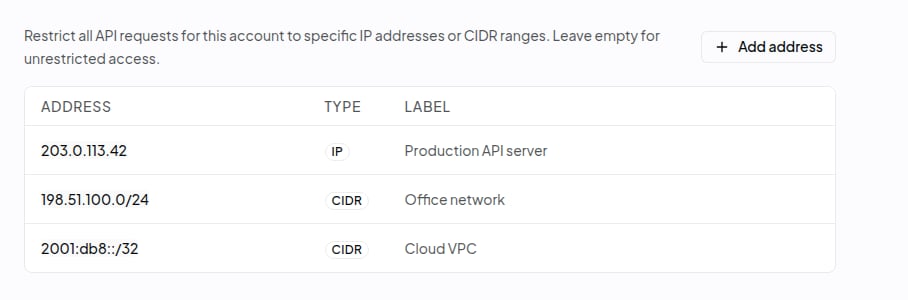
403 Forbidden error. The allowlist applies to every API key in the personal account or organization, including existing keys. Before you add the first entry, include the address of every server, office network, and CI runner that calls the API, or those requests start failing. To turn the restriction off, remove every entry.
To add an entry, open the IP allowlist tab and select Add address, or Add IP address if the list is empty. Enter a single IPv4 or IPv6 address, such as 203.0.113.42, or a CIDR range, such as 10.0.0.0/8, and optionally a label that describes it. Then select Add address to save. Changes apply immediately. To edit or remove an entry, hover over its row and select the pencil or trash icon. Only personal accounts and organization administrators can edit the list; organization members see a notice that administrator access is required.
Related guides
- To manage keys programmatically, see Management API Keys.
- For key rotation best practices, see the API key rotation cookbook.